Users & invitations
Everyone at your company signs in to the same Thunderduck account. Admins add teammates by inviting them by email, and each person then signs in as themselves, with their own query history and their own access.
Invite a teammate
Only a company admin can invite users.
Step 1: Open Settings → Users
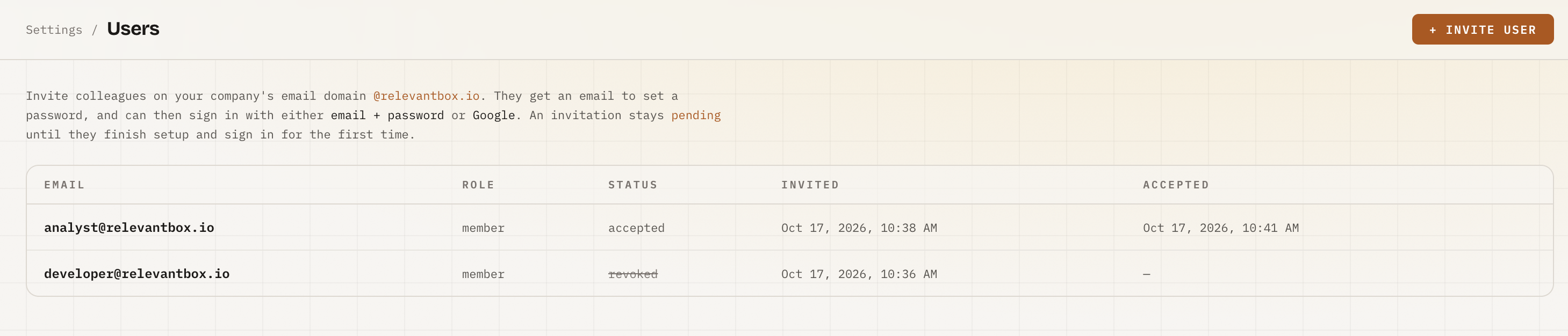
In the console, open Settings, then click Manage → on the Users card. The page lists every invitation your company has sent and its status.

Step 2: Send the invitation
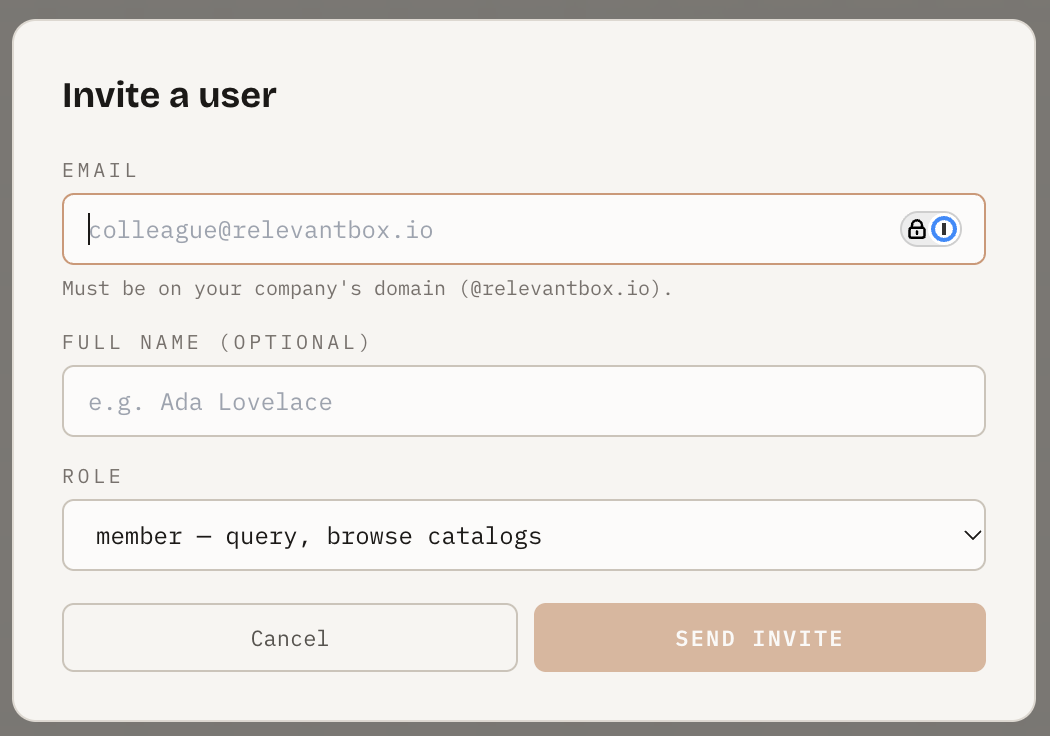
Click + INVITE USER and fill in the form:
- Email: your teammate's work address. It must be on your company's email
domain. For example, if you signed up with
[email protected], you can invite anyone@acme.com. - Full name (optional): shown in the list so you can recognize them.
- Role:
- member can query and browse catalogs.
- admin can also invite and manage users.
Click SEND INVITE.
Step 3: Your teammate accepts
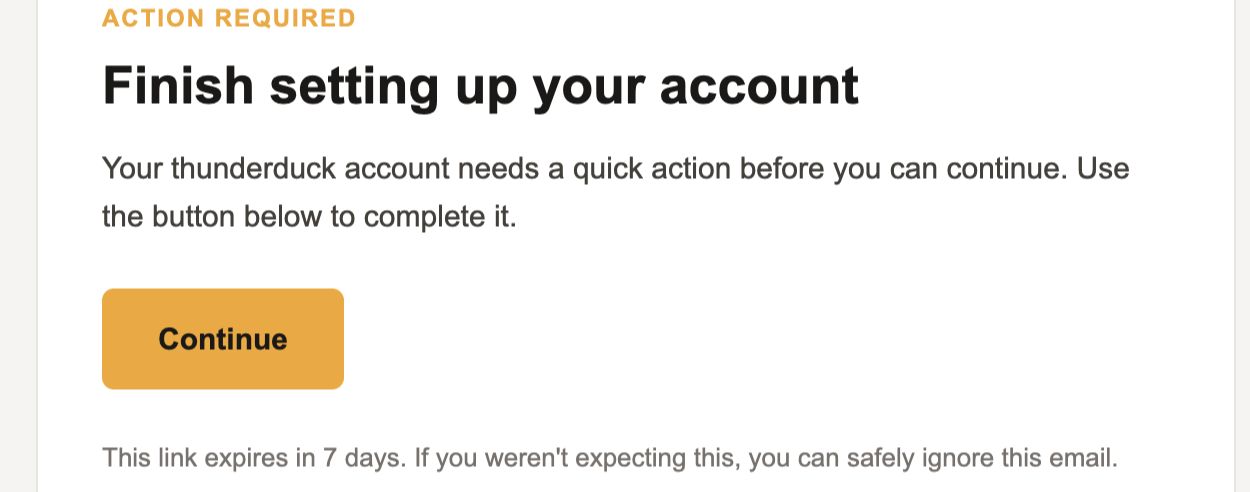
Your teammate gets an email with a link to set a password. After that, they can sign in with either email and password or Google, using the same address.
Step 4: Check the status
The invitation shows as pending until your teammate finishes setup and signs in for the first time. It then changes to accepted.
Revoke an invitation
While an invitation is still pending, an admin can click revoke next to it, and it shows as revoked.
Revoking withdraws the invitation, including the role you picked for it. It doesn't block the person: your company is matched by email domain, so anyone with an address on your domain who signs in to Thunderduck joins your company as a member. If they already set a password, their account isn't removed.
Good to know
- Personal accounts can't invite. If you signed up with a personal address such as Gmail, there is no company domain to invite within. Sign up with your work email to add colleagues.
- Access is set by roles. Until your company creates its first role, every member can read and write every catalog. To limit what each person can read or write, down to a table or a column, see Access control.
- AI assistants act as the person. When a teammate connects Claude or ChatGPT over MCP, it signs in with their own account and sees only what they can see.