Cloudflare R2 & Basin
Thunderduck connects to Cloudflare two ways:
| Catalog type | What it reads | How you query it |
|---|---|---|
| Cloudflare R2 | Files in one R2 bucket (Parquet, CSV, JSON, Excel) | read_parquet('<catalog>/path/*.parquet') |
| Cloudflare Basin (Iceberg) | Iceberg tables in Cloudflare's managed catalog (formerly R2 Data Catalog) | catalog.namespace.table, read and write |
Both read straight from R2, which charges no egress fees.
Cloudflare R2: files in a bucket
1. Create a bucket
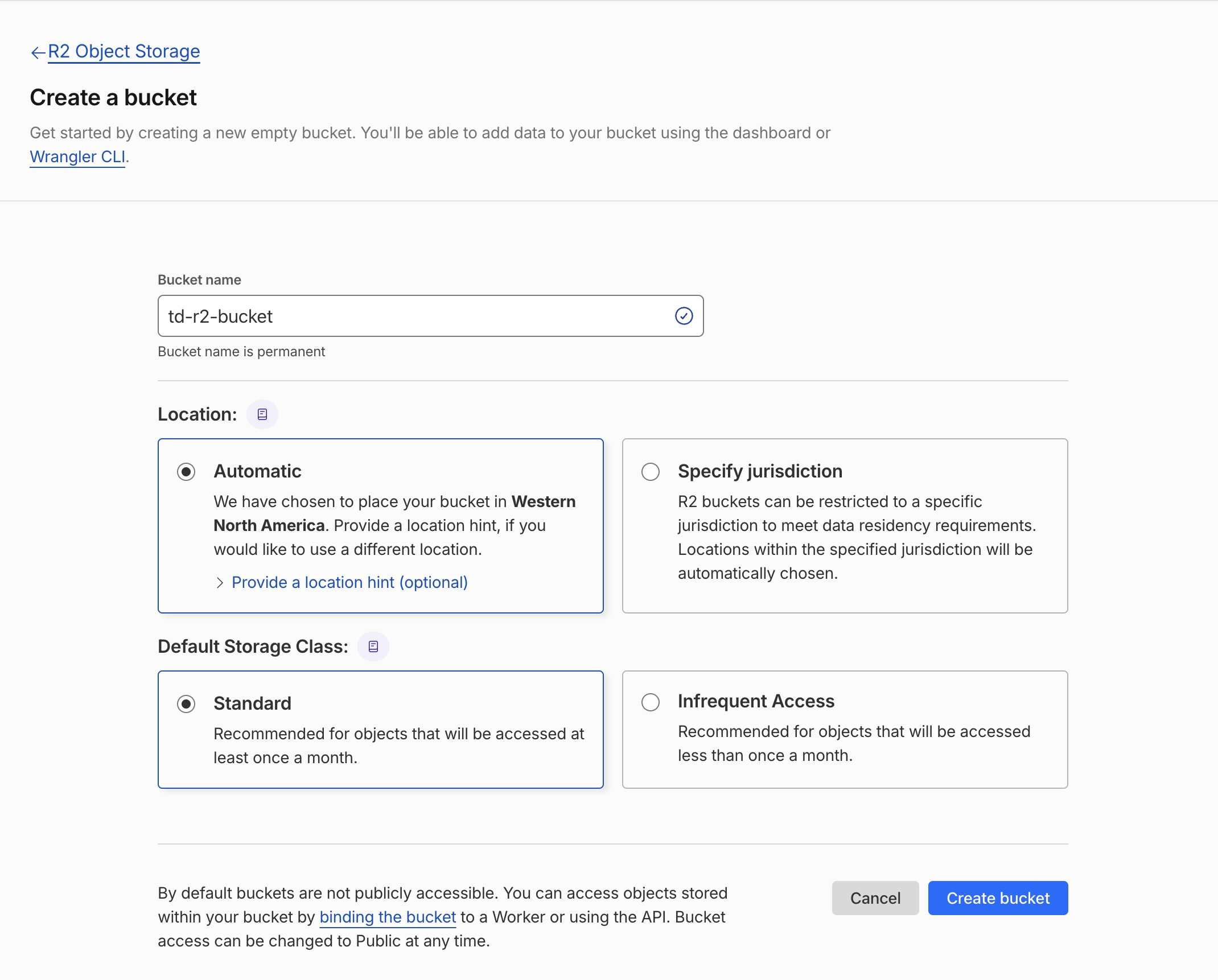
In the Cloudflare dashboard, open R2 Object Storage → Create bucket, or use a bucket you already have. Note the bucket name, and the Account ID shown on the R2 overview page (32 characters).
2. Create an API token
Go to R2 → Manage API tokens → Create API token. Choose Object Read only and scope it to the one bucket. After you create it, copy the Access Key ID and the Secret Access Key; Cloudflare shows the secret only once.
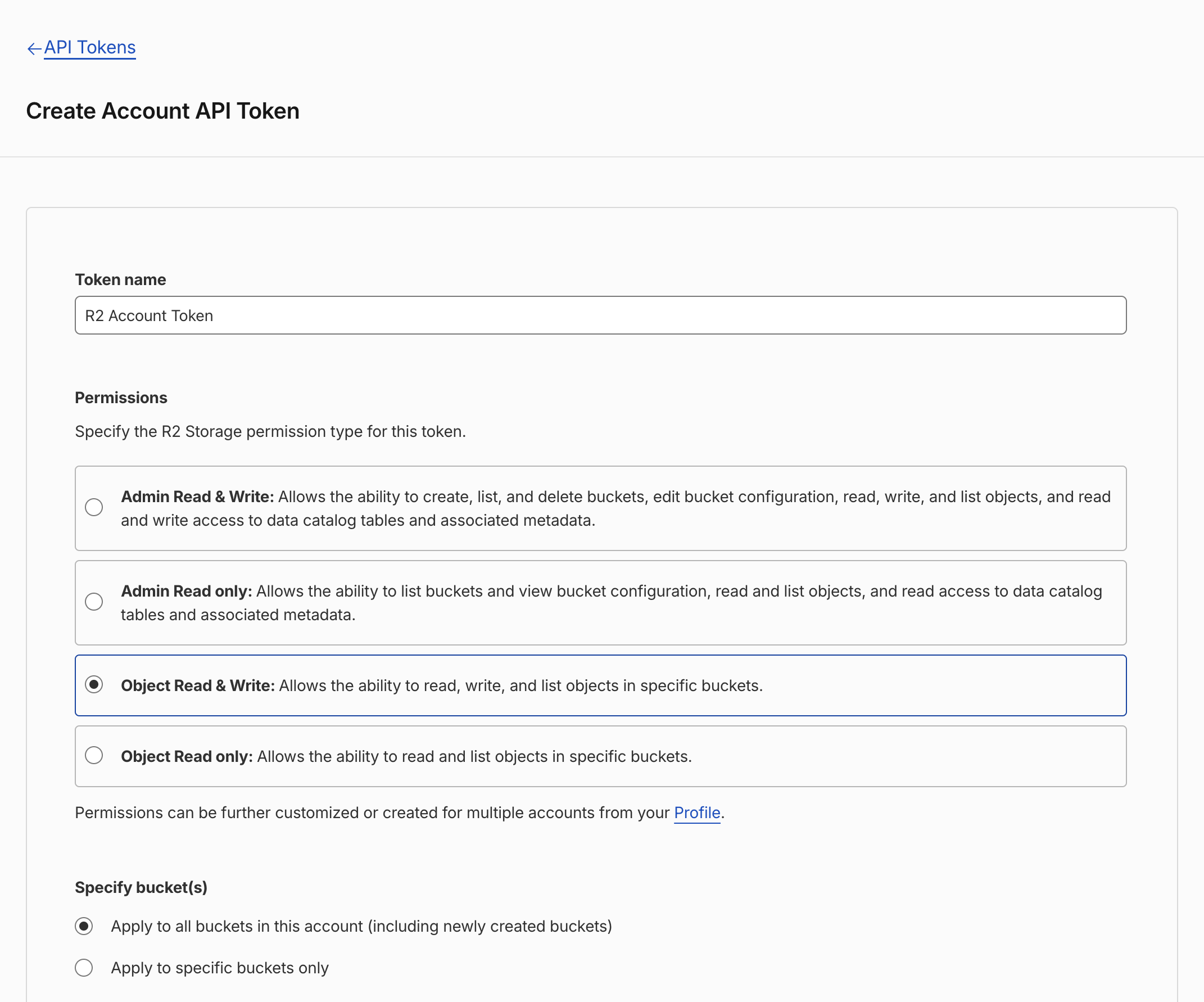
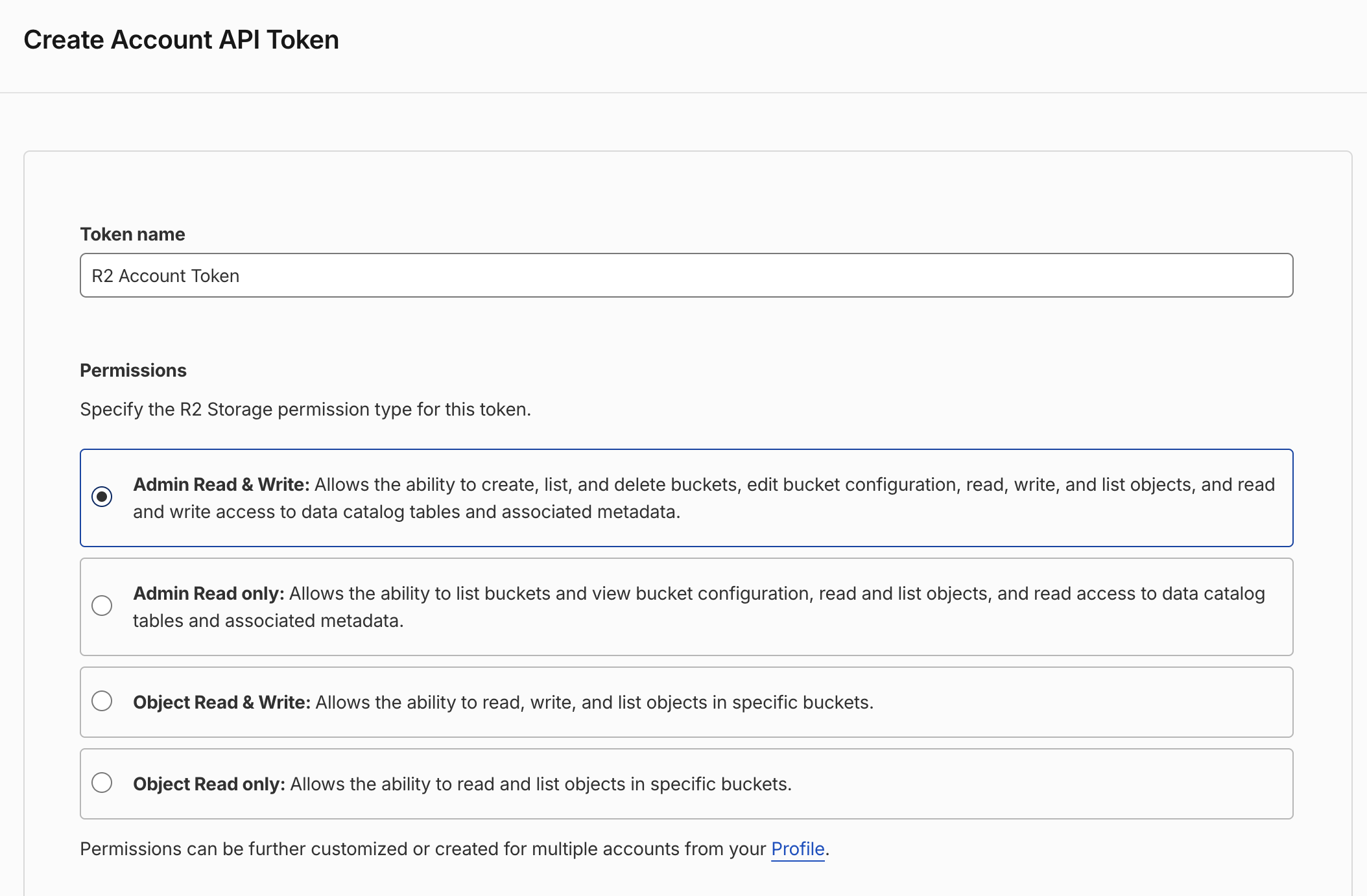
The example above grants more than Thunderduck needs. Object Read only on Apply to specific buckets only is enough.
3. Add the catalog in Thunderduck
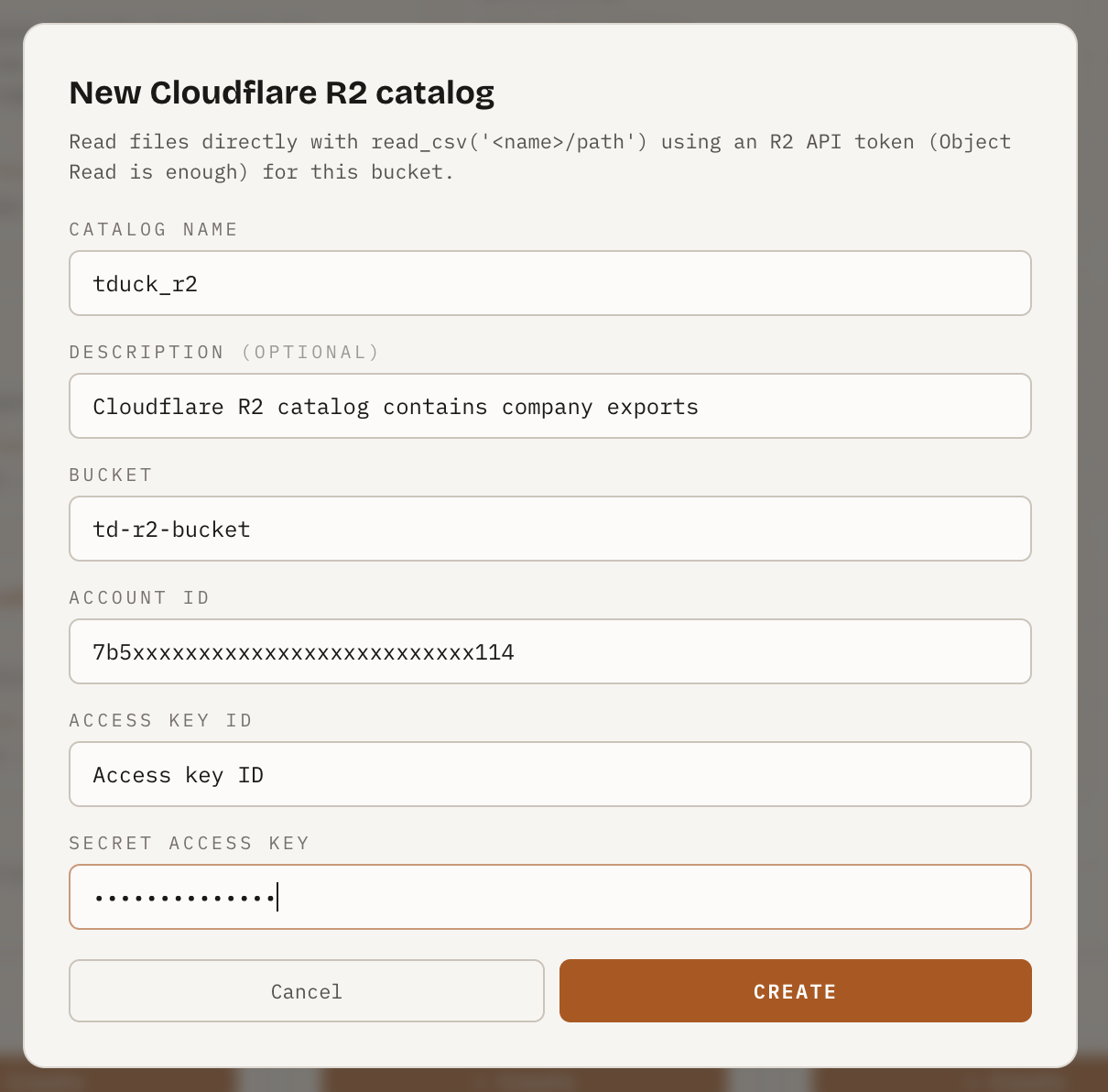
In the console, open Catalogs → Add catalog → Cloudflare R2 and fill in the bucket, account ID, access key ID and secret access key. Thunderduck checks the token by listing the bucket before it saves the catalog.
4. Query it
The catalog name stands for the bucket, so no r2:// URLs and no keys appear
in your SQL:
SELECT * FROM read_parquet('cloudflare_files/events/2026/*.parquet');
SELECT * FROM read_csv('cloudflare_files/exports/customers.csv');
An R2 catalog holds files, not tables, so it shows no table list on the Tables page. See S3, GCS, Azure & R2 for Hive partitioning and Excel details, which work the same way.
Cloudflare Basin: Iceberg tables
Basin Catalog (opens in a new tab) is Cloudflare's managed Iceberg catalog inside an R2 bucket. Connect it to query, create and change its tables from Thunderduck, and join them with your other catalogs.
1. Turn on Basin Catalog for the bucket
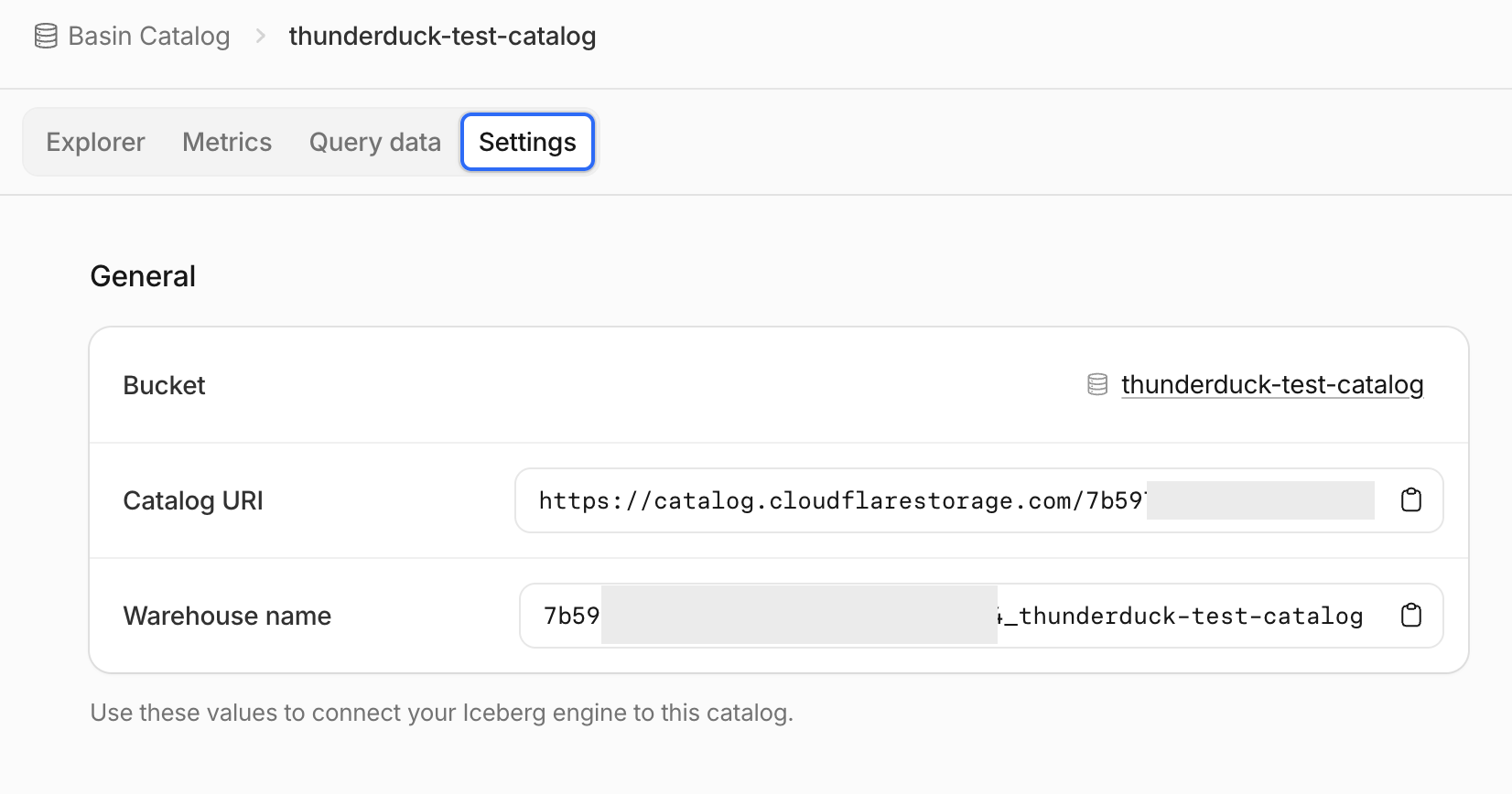
Open the bucket's Settings → Basin Catalog and enable it. Copy the
Catalog URI, which looks like
https://catalog.cloudflarestorage.com/<account id>/<bucket>.
2. Create an API token
Go to R2 → Manage API tokens → Create API token and scope it to the bucket. Choose Admin Read & Write to create and change tables from Thunderduck, or Admin Read only to only read them. Copy the token value.
3. Add the catalog in Thunderduck
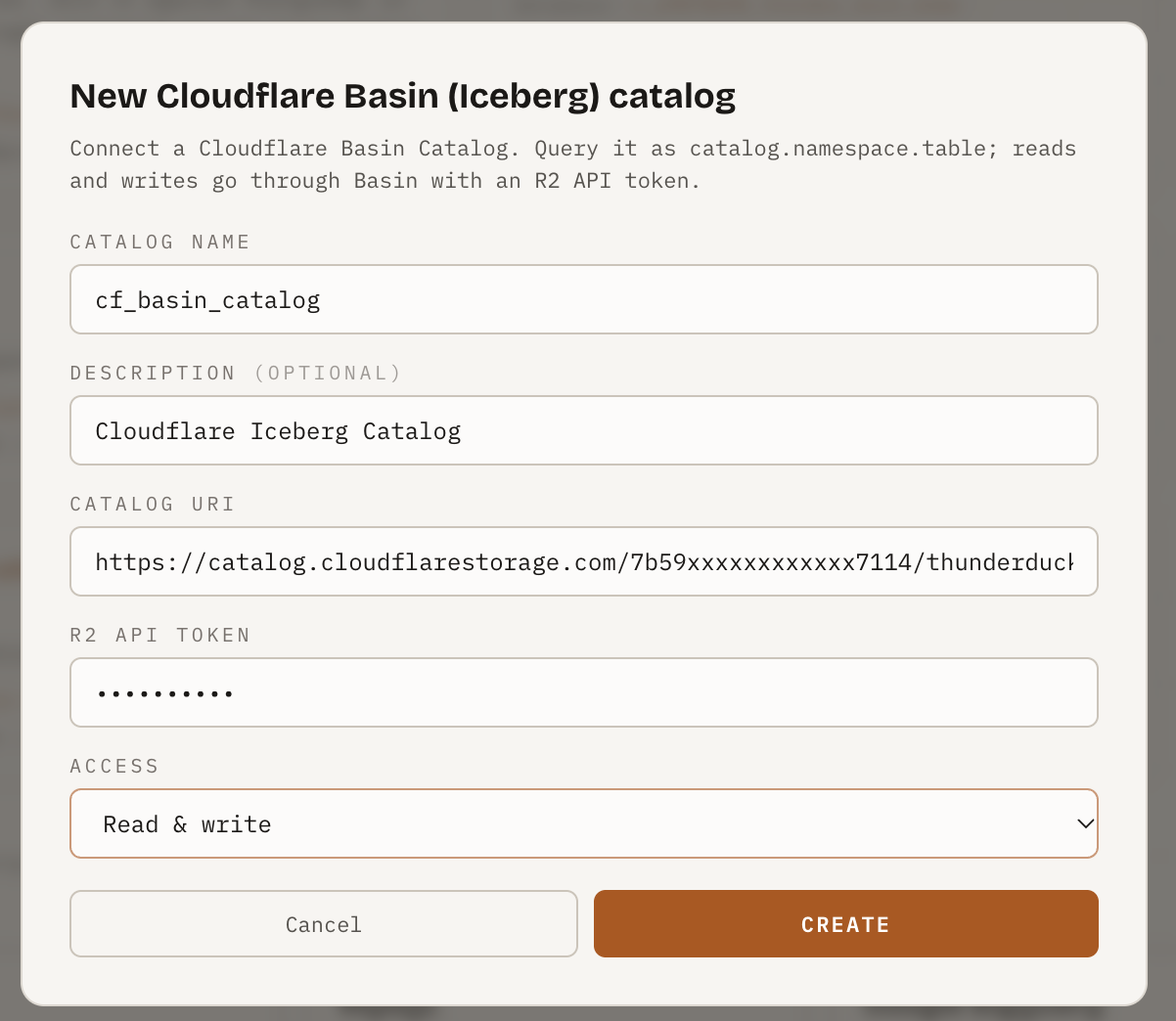
Open Catalogs → Add catalog → Cloudflare Basin (Iceberg) and paste the Catalog URI and the token. Under Access, choose Read-only to attach the catalog read-only, whatever the token allows. Thunderduck checks the token by listing the catalog's tables before it saves.
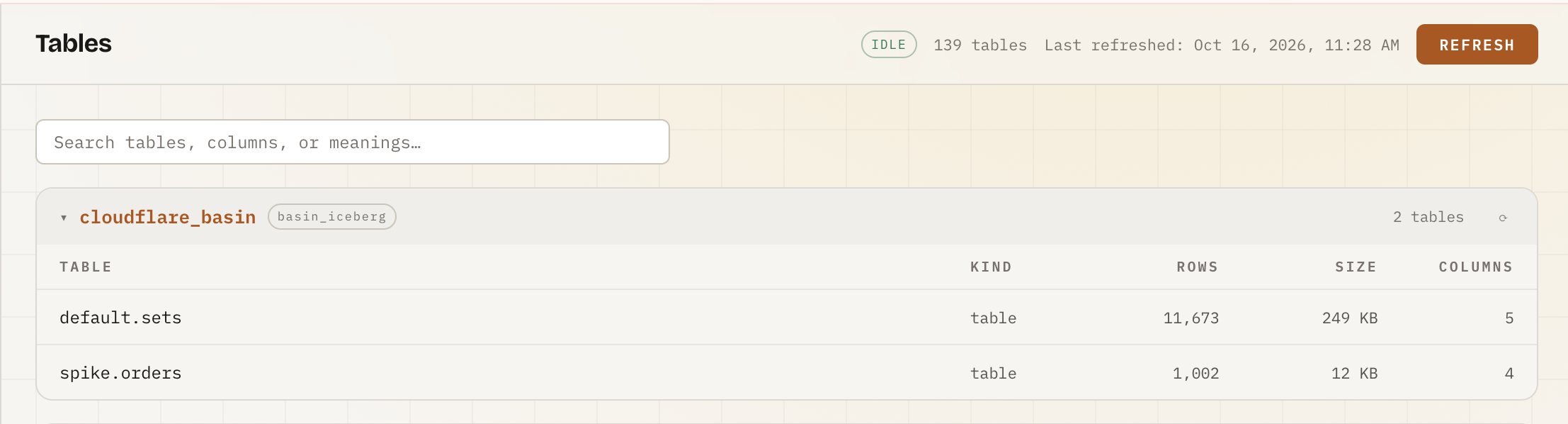
Its tables then appear on the Tables page, grouped by namespace.
4. Query and write
A new Basin catalog has no namespaces. Create one before your first table:
CREATE SCHEMA IF NOT EXISTS lake_cf.sales;Then read, create and change tables as usual:
SELECT customer, sum(amount) AS revenue
FROM   lake_cf.sales.orders
GROUP  BY customer;

CREATE TABLE lake_cf.sales.daily AS
SELECT order_date, count(*) AS orders, sum(amount) AS revenue
FROM   lake_cf.sales.orders
GROUP  BY order_date;

INSERT INTO lake_cf.sales.orders
SELECT * FROM postgres_shop.public.new_orders;
R2 files and Basin tables join like any other catalogs, so you can load a file into a table in one statement:
CREATE TABLE lake_cf.sales.sets AS
SELECT * FROM read_csv('cloudflare_files/sets.csv');
Limits
DELETEandUPDATEwrite Iceberg delete files, and DuckDB cannot run them on partitioned tables.MERGEis not available.- Buckets in a jurisdiction (EU, FedRAMP) are not supported yet.
- Table maintenance (compaction) is Cloudflare's, not the LakeOps page's.